
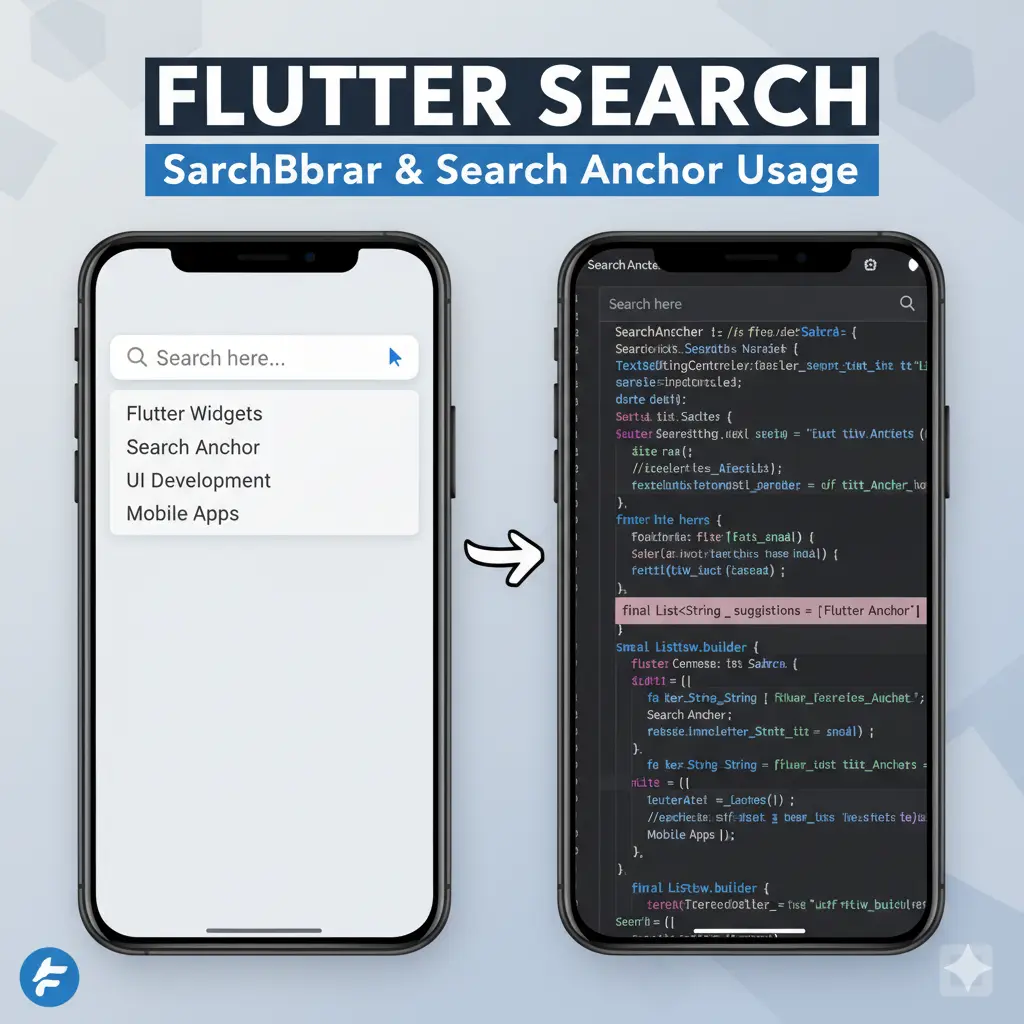
Are you building your app’s search experience from scratch? If so, it’s time to reconsider. Flutter’s Material 3 library offers two powerful widgets—SearchBar and SearchAnchor—that streamline the process and deliver a polished, intuitive search interface with minimal effort.
🧩 What Are SearchBar and SearchAnchor?
These widgets are designed to work together:
- SearchAnchor: Acts as the controller and container for the search flow. It manages the state, handles interactions, and coordinates the display of suggestions.
- SearchBar: Provides the visual search field that users interact with. It supports hint text, icons, and real-time query updates.
Together, they offer a modular and declarative way to build search UIs that feel native and responsive.
🚀 Key Features
- Built-in suggestion handling: Easily display dynamic suggestions as users type.
- Material 3 compliance: Ensures your app looks modern and consistent.
- Customizable behavior: Tailor the search flow to your app’s needs.
- Efficient development: Skip the boilerplate and focus on what matters—your content.
🛠️ How to Use Them
Here’s a basic example of how these widgets work together:
dart
SearchAnchor(
  builder: (BuildContext context, SearchController controller) {
    return SearchBar(
      controller: controller,
      hintText: 'Search...',
      leading: Icon(Icons.search),
      onChanged: (query) {
        // Update suggestions based on query
      },
      onSubmitted: (query) {
        // Handle search submission
      },
    );
  },
  suggestionsBuilder: (BuildContext context, SearchController controller) {
    final query = controller.value.text;
    final suggestions = getSuggestions(query); // Your custom logic
    return suggestions.map((suggestion) {
      return ListTile(
        title: Text(suggestion),
        onTap: () {
          controller.closeView(suggestion);
          // Handle selection
        },
      );
    }).toList();
  },
)
This setup gives you a fully functional search experience with dynamic suggestions and clean UI transitions.
🎯 Pro Tips
- State Management: Use
SearchControllerto manage the search state and trigger UI updates. - Accessibility: These widgets are built with accessibility in mind, ensuring a better experience for all users.
- Customization: You can style the
SearchBarwith custom colors, shapes, and icons to match your app’s branding.
📺 See It in Action
Flutter’s official LinkedIn post showcases this widget combo in their #WidgetOfTheWeek series. It’s a great visual reference to understand how SearchBar and SearchAnchor behave in real-world apps. Check it out here.
🧪 Advanced Use Cases
Here are a few powerful ways to take your search experience to the next level:
1. 🔌 API-Driven Suggestions
Integrate with a backend or third-party API to fetch real-time suggestions:
dart
Future<List<String>> fetchSuggestions(String query) async {
  final response = await http.get(Uri.parse('https://api.example.com/search?q=$query'));
  final data = jsonDecode(response.body);
  return List<String>.from(data['results']);
}
Use this inside your suggestionsBuilder to populate dynamic results.
2. 🧠 Filtering Complex Datasets
For apps with large local datasets (e.g., product catalogs, recipes), use efficient filtering:
dart
List<String> getSuggestions(String query) {
  return allItems
    .where((item) => item.toLowerCase().contains(query.toLowerCase()))
    .take(10)
    .toList();
}
3. 🎨 Custom Styling
Match your app’s branding with custom colors, shapes, and typography:
dart
SearchBar(
  backgroundColor: MaterialStateProperty.all(Colors.deepPurple[50]),
  hintText: 'Search recipes...',
  leading: Icon(Icons.fastfood),
  shape: MaterialStateProperty.all(
    RoundedRectangleBorder(borderRadius: BorderRadius.circular(12)),
  ),
)
🖼️ Visual Walkthrough Ideas
To make your blog even more engaging, consider adding:
- Screenshots of the search UI in action
- Diagrams showing the widget hierarchy and flow
- GIFs or short videos demonstrating real-time suggestions and transitions
- Annotated code snippets with callouts for key features
— Example & Source Code —
FutureBuilder(
      future: fakeRepo.getData(),
      builder: (context, snapshot) {
        if (snapshot.hasData) {
          var data = snapshot.data ?? [];

          return SearchAnchor.bar(
            suggestionsBuilder: (context, controller) {
              final String input = controller.value.text.toLowerCase();

              // Filter data based on user input
              final filteredData = data.where((item) {
                return item.toLowerCase().contains(input);
              }).toList();

              return List<ListTile>.generate(filteredData.length, (int index) {
                final String item = filteredData[index];
                return ListTile(
                  title: Text(item),
                  onTap: () {
                    setState(() {
                      controller.closeView(item);
                    });
                  },
                );
              });
            },
            onChanged: (value) {
              // This will automatically trigger suggestionsBuilder
              // You can add additional logic here if needed
              print('Search query: $value');
            },
          );
        } else {
          return Center(child: Text('No Data Found'));
        }
      },
    );
Leave a Reply