
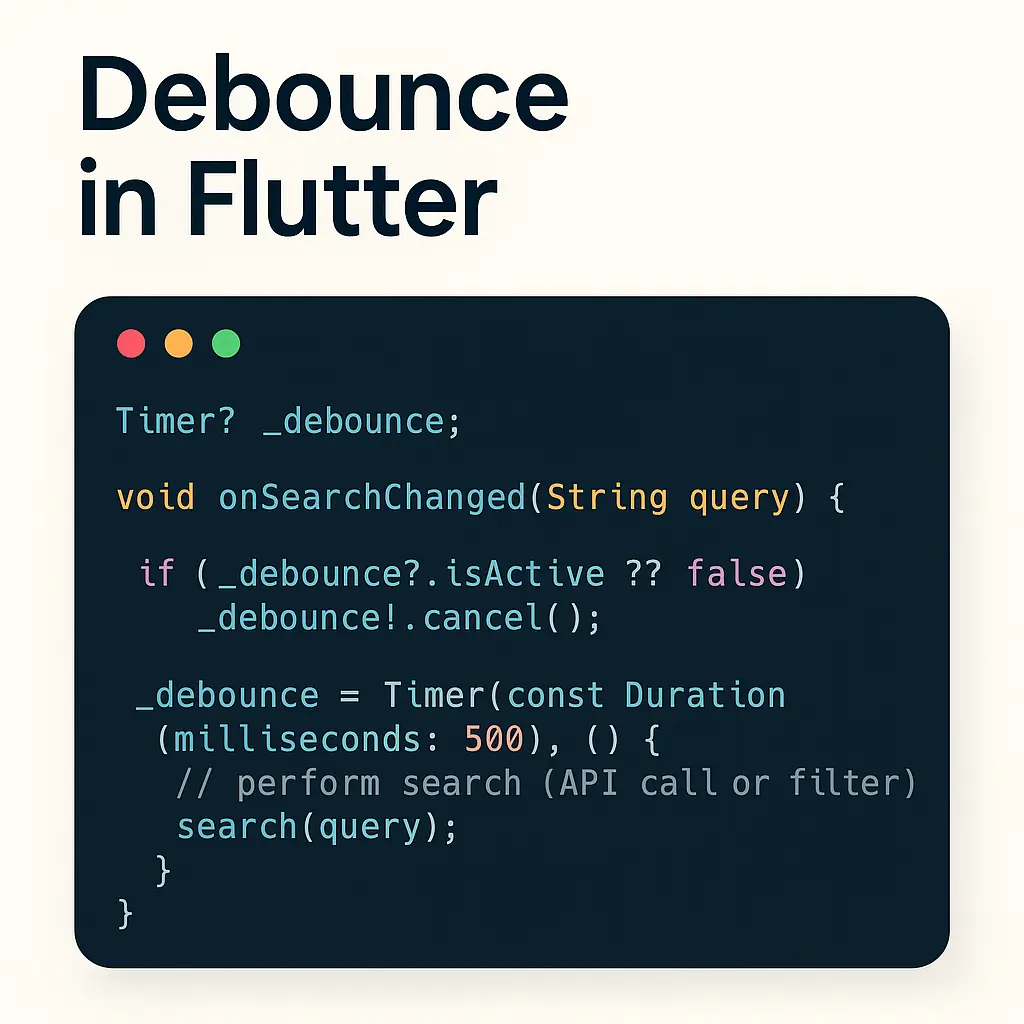
When building features like search-as-you-type, you don’t want to call your API on every keystroke. That quickly creates noisy network traffic, poor battery usage, and a worse UX. Debouncing solves this: wait a short time after the user’s last keystroke, then run the action. If the user types again before the timeout ends, restart the timer.
This post shows a small, practical Flutter example using dart:async Timer as a debounce, explains how it works, and outlines alternatives.
✅ Why debounce?
- Reduces unnecessary API calls and server load
- Smooths user input and network usage
- Keeps the app responsive and efficient
The debounce pattern (core idea)
Timer? _debounce;

void onSearchChanged(String query) {
  if (_debounce?.isActive ?? false) _debounce!.cancel();
  _debounce = Timer(const Duration(milliseconds: 500), () {
    // perform search (API call or filter)
    search(query);
  });
}
Every time the user types, we cancel any running timer and create a new one. Only when the user stops typing for 500ms will the callback run.
Full Flutter example
Copy this into lib/main.dart. It’s a minimal app with a TextField that debounces input and simulates an async API call.
import 'dart:async';
import 'package:flutter/material.dart';

void main() {
  runApp(const DebounceDemoApp());
}

class DebounceDemoApp extends StatelessWidget {
  const DebounceDemoApp({Key? key}) : super(key: key);

  @override
  Widget build(BuildContext context) {
    return MaterialApp(
      title: 'Debounce Demo',
      home: const SearchPage(),
    );
  }
}

class SearchPage extends StatefulWidget {
  const SearchPage({Key? key}) : super(key: key);

  @override
  State<SearchPage> createState() => _SearchPageState();
}

class _SearchPageState extends State<SearchPage> {
  Timer? _debounce;
  final TextEditingController _controller = TextEditingController();
  bool _isLoading = false;
  List<String> _results = [];

  // Example: simulate an API fetch - returns matches after a delay
  Future<List<String>> _fakeSearchApi(String query) async {
    await Future.delayed(const Duration(milliseconds: 600)); // simulate network
    final allData = [
      'apple',
      'banana',
      'apricot',
      'avocado',
      'blueberry',
      'blackberry',
      'cherry',
      'date',
      'fig',
      'grape',
      'kiwi',
      'lemon',
      'mango'
    ];
    if (query.isEmpty) return [];
    return allData.where((item) => item.contains(query.toLowerCase())).toList();
  }

  void _onSearchChanged(String query) {
    // Cancel previous timer if still active
    if (_debounce?.isActive ?? false) _debounce!.cancel();

    // Start a new debounce timer
    _debounce = Timer(const Duration(milliseconds: 500), () async {
      // Show loading status
      setState(() {
        _isLoading = true;
      });

      try {
        final results = await _fakeSearchApi(query);
        if (mounted) {
          setState(() {
            _results = results;
          });
        }
      } catch (e) {
        // handle error
      } finally {
        if (mounted) {
          setState(() {
            _isLoading = false;
          });
        }
      }
    });
  }

  @override
  void dispose() {
    // Important: cancel any pending timer
    _debounce?.cancel();
    _controller.dispose();
    super.dispose();
  }

  @override
  Widget build(BuildContext context) {
    return Scaffold(
      appBar: AppBar(title: const Text('Debounce Search Demo')),
      body: Padding(
        padding: const EdgeInsets.all(16.0),
        child: Column(
          children: [
            TextField(
              controller: _controller,
              decoration: const InputDecoration(
                labelText: 'Search fruits',
                prefixIcon: Icon(Icons.search),
                border: OutlineInputBorder(),
              ),
              onChanged: _onSearchChanged,
            ),
            const SizedBox(height: 12),
            if (_isLoading) const LinearProgressIndicator(),
            const SizedBox(height: 12),
            Expanded(
              child: _results.isEmpty
                  ? const Center(child: Text('No results'))
                  : ListView.separated(
                      itemCount: _results.length,
                      separatorBuilder: (_, __) => const Divider(),
                      itemBuilder: (context, index) {
                        return ListTile(
                          title: Text(_results[index]),
                        );
                      },
                    ),
            ),
          ],
        ),
      ),
    );
  }
}
How it behaves
- Type into the search box. While you’re typing rapidly, the app won’t call the “API”.
- Once you pause for 500ms, the simulated API runs and results appear.
LinearProgressIndicatorshows while the fake network call is in progress.
Tips & best practices
- Choose the delay thoughtfully. 300–700 ms is common. Shorter delays react faster but increase calls. Longer delays feel sluggish.
- Always cancel timers in
dispose()to avoid memory leaks or callingsetState()after the widget is removed. - Show feedback (loading spinner / skeleton UI) so users know something is happening.
- Debounce on the client or server? Client-side debounce reduces client network chatter; server-side deduping/rate-limiting protects your backend.
Alternatives
- Throttle — ensures the function runs at most once per interval (useful when you want periodic updates rather than a single final call).
- Streams / RxDart — Rx-style
debounceTimeis great for complex reactive code:rxdartpackage:textChanges.debounceTime(Duration(milliseconds: 300)).
- Packages —
flutter_debounce,debounce_throttleor similar packages abstract the pattern if you prefer not to implement aTimeryourself.
Common mistakes
- Forgetting to cancel the timer in
dispose()→ can lead to exceptions or memory leaks. - Running heavy UI work inside the timer callback — keep the callback focused on calling your API or dispatching an action.
- Not handling rapid successive API responses — sometimes responses arrive out-of-order. Consider adding a request token (or tracking the
queryused) so you ignore stale responses.
When to use debounce vs throttle
- Debounce — use when you want the action after the user stops interacting (search, form validation).
- Throttle — use when you want to ensure periodic updates, e.g. resize events, scroll handling where continuous but limited updates are fine.
Closing
Debounce is a tiny pattern but has outsized benefits: fewer API calls, better UX, and a more efficient app. The Timer-based approach shown above is simple and works for most cases.
Leave a Reply